Home » Blog » Press releases »
Protected: Route 66 Navigation 3.0: Your Complete Guide to the New App
There is no excerpt because this is a protected post.
Route 66 Navigation first launched in 2018 as a dedicated turn-by-turn navigation app for Historic Route 66.
Eight years later, as Route 66 celebrates its Centennial, we are introducing the biggest change in the history of the app: Route 66 Navigation 3.0.
This is much more than a visual redesign. We rebuilt the app around the experience and feedback collected from Route 66 travelers over the past eight years.
Navigation, trip planning, Places to Visit, Events, settings and many other features are now organized in a completely new way.
If you are upgrading from the previous Route 66 Navigation, this guide will show you where everything moved, what has changed and how to get the most from the new app.
Route 66 Navigation 3.0 in 30 Seconds
The app now revolves around five main sections:
- Home – quick access to your current trip, Settings, weather, News and other useful content.
- Navigate – the Route 66 map and direct access to turn-by-turn navigation.
- Route 66 Copilot – your in-app AI assistant for Route 66 Navigation support.
- Planner – create, edit and manage your Route 66 trips and explore Places to Visit.
- Events – discover upcoming events along Route 66.

If you used Saved Trips in the previous version, you will now find them under:
Planner → My Trips
Places to Visit are now available under:
Planner → Places
They are also displayed directly on the Route 66 map.
Use Navigate whenever you want to start turn-by-turn navigation.
One Important Thing to Understand
You can plan your trip, explore Route 66, browse Places to Visit and calculate routes from anywhere in the world.
Turn-by-turn navigation, however, is designed to start when you are on or near Route 66.
For example, you can plan a trip from Chicago to Santa Monica while sitting at home in London. But the app will not start turn-by-turn navigation from London to Route 66.
Once you are in Chicago, you can select Joliet, Illinois as your destination and start Route 66 turn-by-turn navigation normally.
Upgrading from the Previous Version
Here is where the most important features from the previous Route 66 Navigation have moved.
| Previous Route 66 Navigation | Route 66 Navigation 3.0 |
|---|---|
| Navigate | Navigate |
| Places to Visit | Planner → Places |
| Saved Trips | Planner → My Trips |
| Events | Events |
| Offline Maps | Home → Settings → Offline Data |
| Navigation Settings | Home → Settings |
| General Settings | Home → Settings |
| Apple CarPlay Instructions | Settings |
| Android Auto | Now supported – instructions in Settings on Android |
| Route 66 Guide Book | Temporarily available online |
| Route 66 Passport | Available at route66passport.com |
| S.O.S. | Removed – use 911 for emergencies in the United States |

Before Your First Drive
We strongly recommend doing a few things before starting your Route 66 trip.
1. Download Offline Maps
Route 66 passes through many areas with weak or no mobile data coverage.
Download the offline maps before your trip while connected to a strong and reliable Wi-Fi network.
We also recommend downloading POI Photos.
2. Check Voice Navigation
Open Settings and make sure your preferred navigation language and system voice are correctly configured.
3. Review Your Trip
If you created or imported a trip, review the itinerary before starting navigation.
Pay particular attention to Places to Visit that you added manually.
4. Set Up Apple CarPlay or Android Auto
Route 66 Navigation 3.0 supports both Apple CarPlay and Android Auto.
Instructions are available directly in Settings.
1. Home
The new Home screen gives you quick access to the most important parts of the app.
At the top of the screen you can see the current weather for your location and access Settings.
You will also find the Navigate My Trip button, which provides quick access to the currently active trip from Planner.
At the bottom of the screen is the main navigation bar:
Home · Navigate · Route 66 Copilot · Planner · Events
Home also includes a sliding panel. Swipe it upward to see more information.
Depending on your current trip and available content, you can find:
- details of your current trip,
- selected Route 66 Events,
- the latest Route 66 News,
- access to the Route 66 Shop,
- and additional features that may be added in future versions.

2. Settings
Route 66 Navigation 3.0 brings the settings that were previously located in different parts of the app together in one place.
Open:
Home → Settings
You can manage options including:
Units
Choose your preferred distance and measurement units.
Map Theme
Select your preferred map appearance.
Speed Alert
Configure speed-limit warnings.
Avoid Toll Roads
Particularly useful in areas such as Chicago and Oklahoma.
RV Mode
Adjust routing for RV travel where supported.
Voice Navigation
Configure spoken navigation instructions.
System Voices for Voice Navigation
Manage the voices installed on your device.
Offline Data
Download and update offline maps and POI photos.
You will also find Apple CarPlay or Android Auto instructions, feedback options and other app settings here.

3. Navigate
The Navigate section gives you direct access to the Route 66 map and turn-by-turn navigation.
Open:
Navigate → Search for your destination → Select the result → Start navigation
You can search for more than just cities.
Route 66 Navigation 3.0 can also help you find:
- Places to Visit,
- hotels,
- restaurants,
- and other supported destinations.
Search suggestions and recently searched locations make it faster to find destinations you have used before.
Turn-by-Turn Navigation
Turn-by-turn navigation can be started when you are on or near Route 66.
You can still browse and explore the Route 66 map from anywhere.

Exploring the Route 66 Map
The map can be freely moved and zoomed.
In addition to the Route itself, it displays Places to Visit along Route 66.
When several Places are located close together, the map groups them into a numbered cluster.
Zoom in to see individual Places and their icons.
Tap a Place to open its information panel.
Swipe the panel upward to see additional details.
From the Place detail you can also start navigation to that location if you are currently on or near Route 66.

What’s Nearby
When viewing a Place to Visit, Route 66 Navigation can also show other interesting locations nearby.
What’s Nearby is designed to help you discover worthwhile stops in the same area without having to search for them individually.
You can also see whether the selected Place is included in one of the predefined Tours available in the app.

4. Route 66 Copilot
Route 66 Copilot is your in-app AI assistant.
In the current version, Copilot is focused specifically on Route 66 Navigation support.
You can ask it questions such as:
- How do I use a particular feature?
- Where can I find something in the app?
- How do I download offline maps?
- How do I configure voice navigation?
- What should I do if I experience a technical problem?
Copilot is designed to help you immediately when you need assistance without having to wait for a reply from our human support team.
In the current version, Copilot is focused on app support rather than general Route 66 questions.
We plan to expand its capabilities in future versions.

5. Planner
Planner is one of the biggest new features in Route 66 Navigation 3.0.
It allows you to build and customize your Route 66 journey day by day.
You can:
- create your own trip,
- plan a journey lasting from one day to several weeks,
- choose overnight locations,
- add Places to Visit,
- use one of our Premade Trips,
- explore all Places along Route 66,
- review your trip on a map,
- and adjust your itinerary at any time.
Open:
Planner
At the top of the screen you will find the Create Trip button.
Planner contains three main sections:
My Trips · Premade Trips · Places
My Trips
My Trips contains the trips you created or saved.
This also includes Saved Trips transferred from the previous version of Route 66 Navigation.
Where Are My Old Saved Trips?
If you had Saved Trips before updating the app, we preserved them during the upgrade.
Open:
Planner → My Trips
Each previously saved day is available as an individual trip.
Tap a trip to open its details.
Then tap Navigate when you are ready to continue your journey.
For each trip you can see information such as:
- whether the trip is currently active,
- the number of stops,
- its duration,
- and its distance.
Trips that you create while experimenting or testing Planner may also remain in My Trips.
To remove a trip, swipe it to the left and select Delete.
Please note: deleted trips cannot be restored.

Premade Trips
Not sure how to divide your Route 66 journey into individual days?
Start with a Premade Trip.
These itineraries have been prepared by Route 66 Navigation, our partners and Route 66 friends.
They typically follow Route 66 from Chicago to Santa Monica but differ in:
- number of travel days,
- overnight locations,
- selected Places to Visit,
- and travel style.
Most importantly, Premade Trips are editable.
You can use one as a starting point and customize it according to your own schedule and interests.
Places
Open:
Planner → Places
Here you will find Places to Visit along Route 66.
They are organized according to their location on the Route and can be browsed by state and city.
You can also filter Places according to your interests.
Tap Navigate next to a Place to start navigation there when you are on or near Route 66.
Tap anywhere else on the Place card to open its details.
The information panel slides up from the bottom of the screen. Swipe upward to display additional information.
Where available, descriptions can also be read aloud, allowing the driver to remain focused on the road while a passenger explores the content.

How to Create Your Own Route 66 Trip
Open:
Planner → Create Trip
Then follow the setup process.
Step 1: Select Your Dates
Choose the starting date and number of travel days.
The app automatically calculates the end date.
Step 2: Choose Your Route
Select your starting location and final destination.
Step 3: Select Your Vehicle
Choose the type of vehicle you will be using.
Step 4: Choose Your Interests
Select the types of Places to Visit that interest you, or leave the filters unchanged.
Step 5: Review Your Suggested Itinerary
Route 66 Navigation creates a suggested day-by-day itinerary based on the length of your journey.
The itinerary includes proposed overnight locations for individual days.
You can then customize every day according to your own preferences.

Understanding Your Itinerary
Your trip is displayed as a timeline.
It can show information including:
- overnight locations,
- distances between stops,
- Places to Visit,
- current or available weather information,
- and the sequence of your journey.
The purpose of the initial itinerary is to give you a practical starting point.
You remain in control and can adjust the trip at any time.

Our Route 66 Travel Recommendation
If you want enough time to stop, explore and actually experience Route 66, we recommend planning approximately 200 miles per day or less whenever your schedule allows.
Route 66 is not a road that should be rushed.
A longer trip gives you more flexibility to explore the communities, attractions and people that make the Mother Road special.
Changing an Overnight Location
You can modify the city where a travel day ends.
The easiest method is to use:
Change City
Select your preferred overnight destination and update the itinerary.
You can also use Find Hotels to help explore accommodation options.
For more detailed manual control, use the three-dot menu next to a location.
If you remove the existing End Day location manually, make sure another appropriate location is selected as the end of that travel day.
This helps the app divide the journey correctly.

Adding Places to Visit
You can add individual Places to Visit to each day of your itinerary.
Open your trip and select:
Add Stops
The app displays available Places to Visit for the relevant Route 66 section.
Tap + Add to include a Place.
Tap it again if you want to remove it.
When you return to the Itinerary tab, selected Places appear in the sequence in which they occur along Route 66.
You can continue adding or removing Places while planning your journey.

Important: Review the Stops You Add
Route 66 Navigation includes your selected stops when calculating and navigating your itinerary.
Before starting your trip, review the stops you added.
In particular, avoid adding a Place that is behind your current position unless you intentionally want to return there.
If a selected stop is behind you or outside the section you intend to drive, the calculated route may take you back to that location.
In large cities or densely populated areas, visiting multiple Places can also add significant driving time and distance to your day.
Always take this into account when planning how much you want to see.
Visited Stops
Route 66 Navigation is designed to recognize when you reach a Place included in your itinerary.
When detected, the stop is marked as visited and the itinerary continues toward the next destination.
Most visited stops are detected automatically.
If a Place is not marked as visited, you can update it manually.
Open the three-dot menu next to the Place and choose:
Select as Visited
or, if you no longer want to visit it:
Remove from Trip
Keeping your itinerary up to date helps Route 66 Navigation guide you to the correct next stop.

Show Your Trip on the Map
One of the major additions to Planner is:
Show on Map
This allows you to visually review your planned trip before driving it.
The map displays your Route 66 journey day by day, including selected Places to Visit and the route connecting them.
This is particularly useful during trip preparation because you can immediately see how individual stops affect your journey.

6. Events
Open:
Events
Here you can discover upcoming events taking place along Route 66.
Events can be filtered by state and are organized according to their upcoming dates.
Tags make it easier to understand the type of event at a glance.
Event descriptions can also be read aloud, which can be useful while traveling.

7. Frequently Asked Questions
How Do I Quickly Start Navigation?
Open the app and tap:
Navigate
Search for your destination in the Navigate To field.
You can search for cities as well as supported Places to Visit, hotels, restaurants and other destinations.
The app also provides search suggestions and recently searched locations.
Remember that turn-by-turn navigation starts when you are on or near Route 66.
Where Can I Find Places to Visit?
Open:
Planner → Places
All Places to Visit are organized according to their position along Route 66.
You can browse them by state and city and filter them according to your interests.
You can also see Places directly on the Navigate map.
Where Did My Saved Trips Go?
Saved Trips have been replaced by the more powerful Planner system.
Open:
Planner → My Trips
Trips saved in the previous version were transferred during the update.
Each previously saved day appears as an individual trip.
Open the trip and select Navigate when you want to continue your journey.
Where Is the Route 66 Guide Book?
We are currently preparing an updated version of the Route 66 Guide Book, so it is temporarily not included directly in Route 66 Navigation 3.0.
Until the updated version is available, you can access the Route 66 Guide Book online:
Where Can I Find the Route 66 Passport?
The Route 66 Passport is no longer a separate item in the main app menu.
You can find all information about the Route 66 Passport at:
Where Can I Find Route 66 News?
Open:
Home
Swipe the panel above the bottom navigation bar upward.
Scroll until you reach the News section.
The two latest stories are displayed directly on Home.
Tap a story to open Route 66 News.
Select See All to view additional recent stories.
How Do I Download Offline Maps?
Offline maps are strongly recommended when traveling Route 66.
Some sections of the Route have limited or no mobile data coverage.
We recommend downloading the required data before your trip using a strong and reliable Wi-Fi connection.
Public Wi-Fi networks and networks in hotels or restaurants may restrict large downloads.
Open:
Home → Settings → Offline Data → Offline Maps
Follow the instructions to download the maps.
We also recommend downloading:
POI Photos
When both packages are downloaded, the app displays their status on the Offline Data screen.
Available map or photo updates will also appear here.
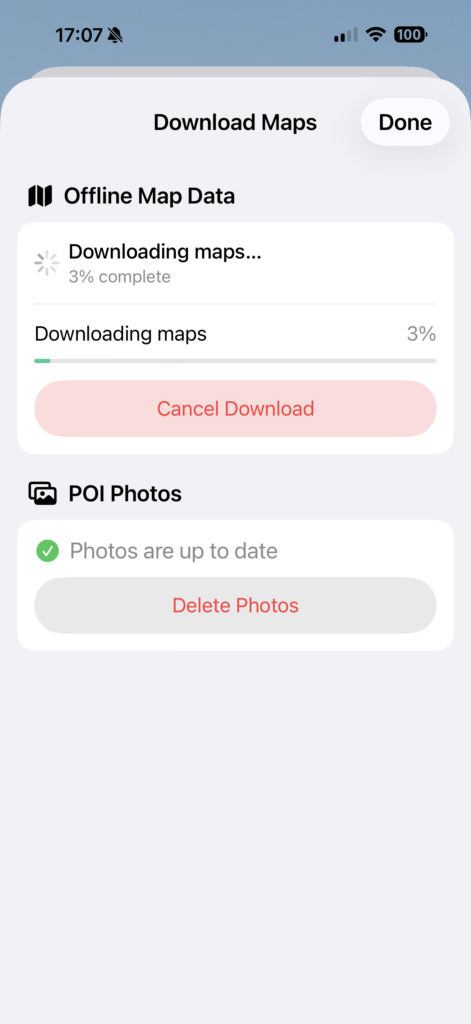
Important
Offline maps and POI photographs are stored internally as part of Route 66 Navigation.
They do not appear as separate map or image files elsewhere on your phone.
Once Route 66 Navigation detects that the offline data has been downloaded, the app automatically prioritizes it when appropriate.
You do not need to activate a separate offline mode.
What Happened to the S.O.S. Button?
The separate S.O.S. feature from the previous Route 66 Navigation is no longer included in Route 66 Navigation 3.0.
In an emergency involving immediate danger to life or health while in the United States, call 911.
Route 66 Navigation is not an emergency response service.
Where Are the Apple CarPlay Instructions?
Open:
Home → Settings
Scroll until you find:
Apple CarPlay Instructions
Follow the instructions provided for connecting and using Route 66 Navigation with Apple CarPlay.
Does Route 66 Navigation Support Android Auto?
Yes.
Route 66 Navigation 3.0 now supports Android Auto.
On Android devices, open:
Home → Settings → Android Auto Instructions
Follow the instructions shown there.
What Has Changed in Apple CarPlay?
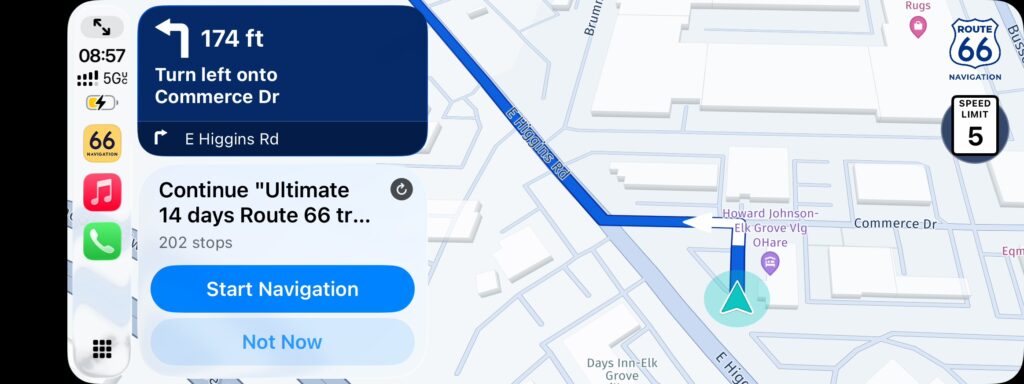
Route 66 Navigation 3.0 also introduces significant improvements to Apple CarPlay.
The CarPlay interface includes:
- clearer maps optimized for the vehicle display,
- improved Places to Visit icons,
- additional navigation information,
- updated speed-limit data,
- and improved speed warnings.
While driving, the CarPlay screen displays your map and navigation instructions.
At the same time, your itinerary remains available on the phone and can automatically progress as stops are completed.
For safety, interact with your phone only when parked or let your passenger manage the itinerary while you drive.
How Do I Configure Voice Navigation?
Route 66 Navigation can provide spoken turn-by-turn navigation instructions.
Open:
Home → Settings → Voice Navigation
If voice navigation is disabled, the Language option may be set to:
No Voice Navigation
To enable spoken instructions, select your preferred language and voice.
Route 66 Navigation uses the system voices available on your phone.
You can manage them through:
Manage System Voices
The appropriate system voice must also be enabled in your phone settings.
I Enabled Voice Navigation but Cannot Hear It
Navigation audio volume can sometimes differ from the normal media volume on your phone.
While a navigation instruction is being spoken, use the phone’s physical volume buttons to adjust the navigation voice to a comfortable level.
Where Did the Old Settings Go?
The previous version of Route 66 Navigation had settings in more than one location.
Some were available from the main dashboard, while navigation-related settings were accessible through the gear icon on the map.
Route 66 Navigation 3.0 brings them together.
Open:
Home → Settings
This is now the main location for app and navigation settings.
How Can I Send Feedback?
Your feedback helps us improve Route 66 Navigation.
You can contact us directly at:
You can also submit feedback directly from the app.
Open:
Home → Settings → Feedback
If you are reporting a technical problem, please describe what happened and what you were doing immediately before the problem occurred.
Make sure you provide a correct email address if you would like us to reply.
When possible, please also allow the app to attach diagnostic logs.
These logs help our team understand what happened and reproduce technical problems.
The diagnostic logs are designed for troubleshooting and do not require you to provide personal information such as your name, telephone number or account registration details.
Planning vs. Navigating: An Important Difference
This is one of the most important concepts in Route 66 Navigation 3.0.
Planning
You can plan your Route 66 journey from anywhere.
You can:
- create trips,
- calculate routes,
- explore the Route,
- view Places to Visit,
- change overnight cities,
- add stops,
- and review your journey on the map.
You can do all of this before you travel to the United States.
Turn-by-Turn Navigation
Turn-by-turn navigation is designed for actual travel on or near Historic Route 66.
Once you are on the Route, Route 66 Navigation guides you along the supported Route 66 alignments and toward the destinations included in your trip.
Welcome to Route 66 Navigation 3.0
Route 66 Navigation 3.0 is the result of eight years of development, traveler feedback and experience with people actually driving Historic Route 66.
The interface has changed.
The way you plan your journey has changed.
Many familiar features have moved.
And many new capabilities have been added.
But the goal remains exactly the same:
to make traveling Historic Route 66 easier, safer and more enjoyable — while helping you experience as much of the Mother Road as possible.
Before your next trip, download your offline maps, open Planner and explore the new version.
And whenever you need help, ask Route 66 Copilot or contact us at:
Enjoy the road.
See you on Route 66.