Home » Blog » Press releases »
Protected: New Route 66 Navigation 3.0: Start Here
There is no excerpt because this is a protected post.
Welcome to Route 66 Navigation 3.0.
If you have been using the previous version, the app you opened after the update may look completely different.
That is intentional.
We rebuilt Route 66 Navigation around eight years of experience and feedback from travelers actually driving Historic Route 66.
Your familiar features have not simply disappeared. Most of them have moved into a new, simpler structure — and some have become significantly more powerful.
Here are the most important things to know.
1. The App Now Has Five Main Sections
At the bottom of the screen you will find:
Home · Navigate · Route 66 Copilot · Planner · Events

Think of them this way:
Home
Your starting point, current trip, weather, Settings, News and more.
Navigate
Your Route 66 map and quick turn-by-turn navigation.
Route 66 Copilot
Your AI assistant for questions about using Route 66 Navigation.
Planner
Your trips, trip planning, Premade Trips and all Places to Visit.
Events
Upcoming events along Route 66.
2. Your Old Saved Trips Are Still Here
This will probably be the first question many existing users have.
Your Saved Trips were not removed.
They are now located under:
Planner → My Trips
Trips transferred from the previous app are available here, with each previously saved day stored as an individual trip.
Open the trip and tap Navigate when you want to continue your journey.

3. Places to Visit Have Moved to Planner
Looking for Places to Visit?
Open:
Planner → Places
Here you can browse Places along Route 66 in the order in which they appear on the Route.
You can browse by state and city and filter Places according to your interests.
Places are also visible directly on the Route 66 map.

4. Use Navigate When You Want to Drive
To quickly start navigation:
Open Navigate → Search for your destination → Select it → Start navigation
You can search for:
- cities,
- Places to Visit,
- hotels,
- restaurants,
- and other supported destinations.

Important: Planning and Navigating Are Different
You can plan a Route 66 trip from anywhere in the world.
You can sit at home in Europe, create a Chicago-to-Santa-Monica itinerary, explore Places to Visit and review the entire route on the map.
Turn-by-turn navigation, however, is designed to start when you are on or near Route 66.
5. Planner Is the Biggest New Feature
Planner allows you to build your Route 66 journey day by day.
You can:
- create your own trip,
- choose how many days you have,
- select your start and end locations,
- choose overnight cities,
- add Places to Visit,
- use editable Premade Trips,
- find hotels,
- and see your entire trip on the map.
Open:
Planner → Create Trip
Route 66 Navigation creates an initial itinerary that you can customize according to your own travel style.

Our Recommendation
If your schedule allows, plan approximately 200 miles per day or less.
Route 66 is much more enjoyable when you have enough time to stop, explore the towns and meet the people along the Mother Road.
6. You Can Add Places to Individual Days
Inside your trip, open:
Add Stops
Select the Places you want to visit by tapping + Add.
When you return to your itinerary, they will appear in their Route 66 sequence.

Review Your Stops Before Driving
Route 66 Navigation includes the stops you select when calculating your trip.
If you add a Place that is behind your current location, the app may route you back to it.
Before starting each day, review your itinerary and remove any stops you no longer intend to visit.
7. See Your Entire Trip on the Map
Tap:
Show on Map
You can see your planned journey, the Places you selected and the Route 66 route connecting them.
This makes it much easier to understand your trip before you start driving.

8. Download Offline Maps Before Your Trip
Some parts of Route 66 have weak or no mobile data coverage.
Before leaving home, connect to a strong Wi-Fi network and open:
Home → Settings → Offline Data
Download:
Offline Maps
and preferably:
POI Photos
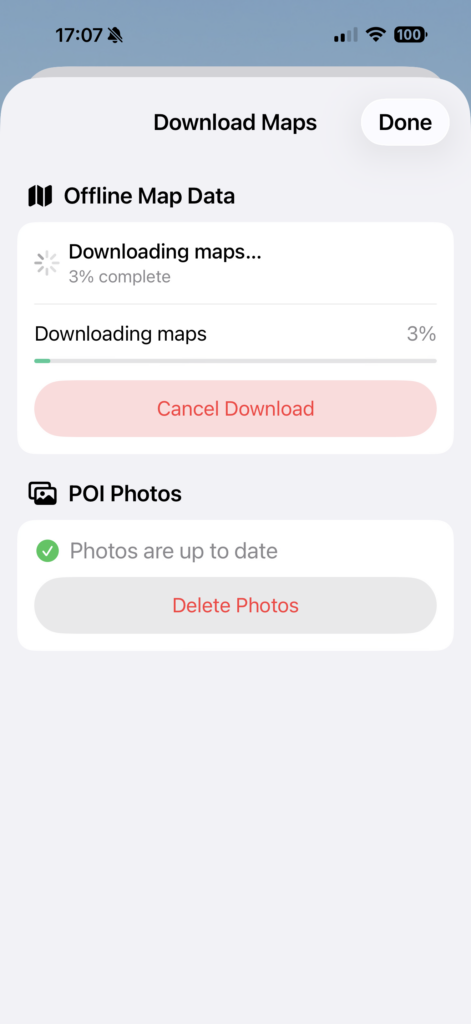
Once downloaded, Route 66 Navigation automatically uses the offline data when appropriate.
You do not need to switch on a separate offline mode.
9. Settings Are Now in One Place
The previous Route 66 Navigation had settings in several locations.
Route 66 Navigation 3.0 brings them together.
Open:
Home → Settings
Here you can manage:
- Units
- Map Theme
- Speed Alert
- Avoid Toll Roads
- RV Mode
- Voice Navigation
- System Voices
- Offline Data
- Apple CarPlay instructions
- Android Auto instructions
- Feedback
10. Android Auto Is Here
Route 66 Navigation 3.0 now supports Android Auto.
Apple CarPlay has also been significantly improved.
The vehicle screen can display navigation while your phone keeps your trip itinerary available and automatically progresses through completed stops.
For safety, interact with your phone only when parked or let your passenger manage the itinerary while you drive.
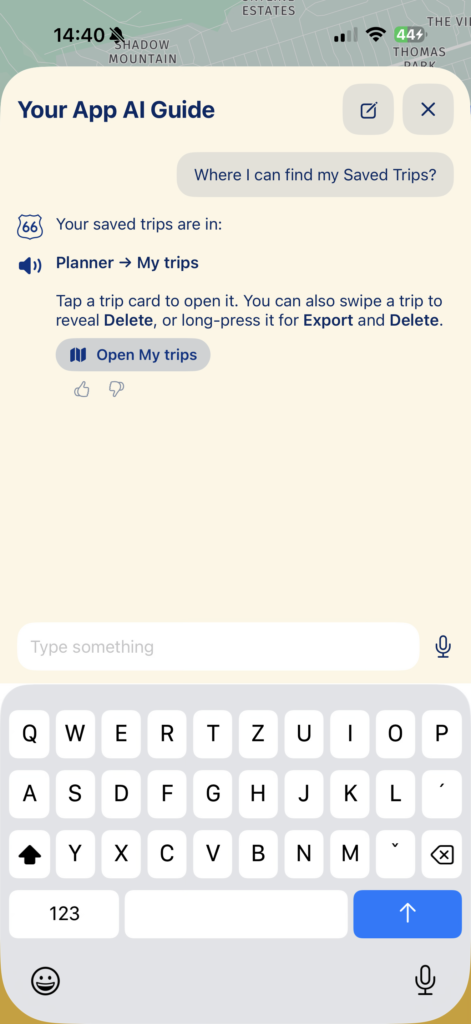
11. If You Need Help, Ask Route 66 Copilot
Route 66 Copilot is the new AI assistant built into Route 66 Navigation.
In the current version, it specializes in helping you use the app.
Ask questions such as:
“Where can I find my Saved Trips?”
“How do I download offline maps?”
“How do I change my overnight city?”
“Why can’t I hear voice navigation?”
You can also contact our human support team at:
The Three Things We Recommend Doing Now
Before your Route 66 journey:
1. Open Planner and review your trips.
2. Download Offline Maps and POI Photos.
3. Create or review your itinerary before you start driving.
That is enough to get started.
Route 66 Navigation 3.0 contains many more features, but you do not need to learn everything at once.
Explore the new app at your own pace.
Need More Detail?
We have prepared a complete Route 66 Navigation 3.0 guide covering:
- Planner in detail,
- Premade Trips,
- Places to Visit,
- overnight locations,
- visited stops,
- Voice Navigation,
- Apple CarPlay,
- Android Auto,
- Events,
- News,
- feedback and diagnostic logs,
- and frequently asked questions.
Read the Complete Route 66 Navigation 3.0 Guide →
The interface is new.
The way you plan your journey is new.
But our goal remains the same:
to help you experience Historic Route 66 with confidence and enjoy as much of the Mother Road as possible.
See you on Route 66.

Comments